

Understanding Property Health
How the 0 to 100 score is worked out from your ingoing baseline, what the ring colours and trend mean, and when inspection reminders arrive.
Property Health tracks your property's condition over time. Your ingoing report establishes a baseline, and every report after that shows how the property has changed since.
Open it from the property hub's Property Health pulse card.
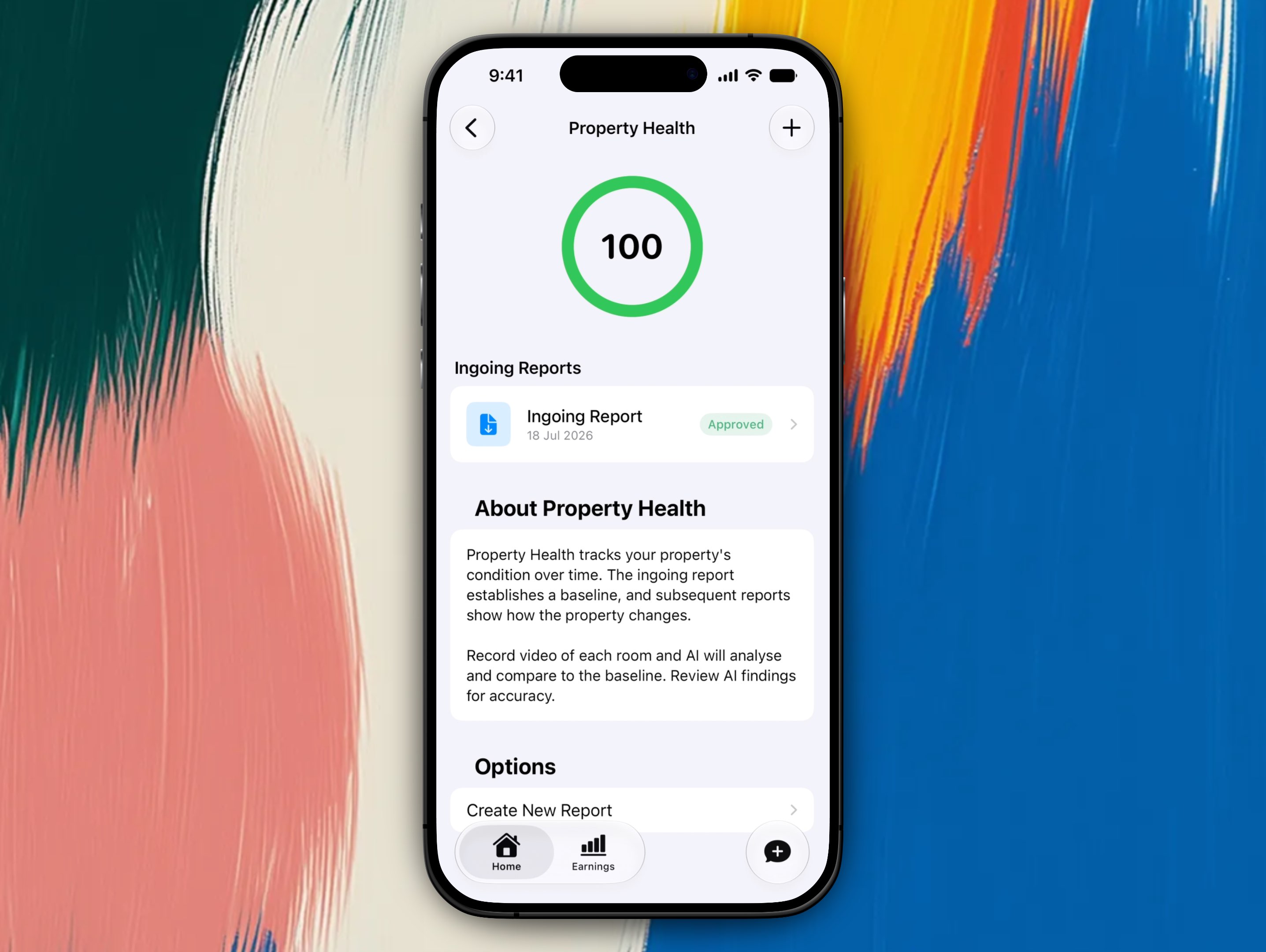
The score sits at the top, with your report history below it and Create New Report under Options.
Before your first report
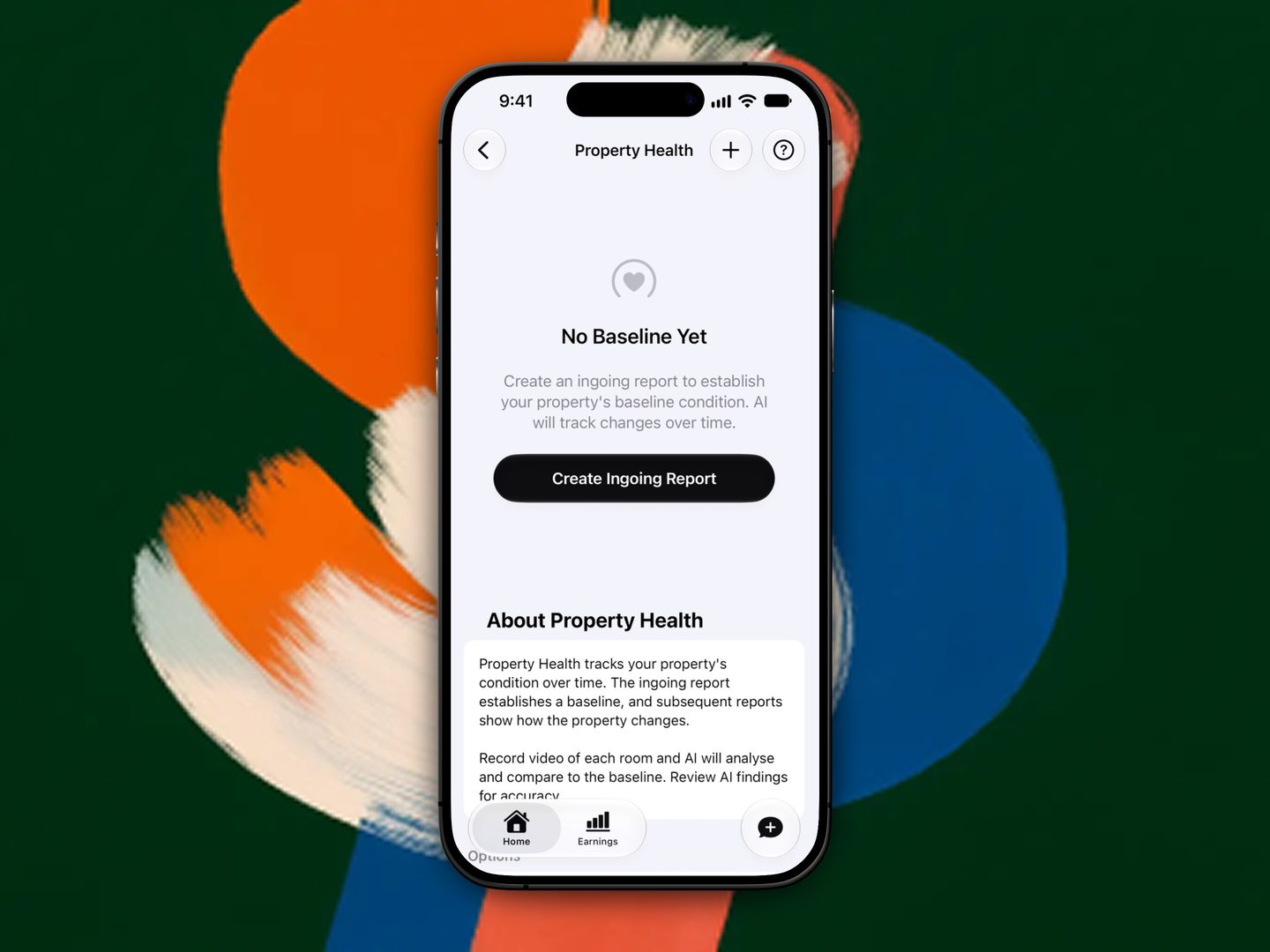
Until you complete an ingoing report, the Property Health screen shows No Baseline Yet with a prompt to create one. There's no score to show yet, and the pulse card reads Create your first report.
While that first walkthrough is being analysed, the screen shows Analysing your property instead of a score. This usually takes a few minutes.
How the score works
Once your ingoing report is approved, Property Health shows a score from 0 to 100 in a colour-coded ring, plus a trend of Improving, Stable, or Declining compared to your last score.
The score reflects your most recently approved report compared against the ingoing baseline, not an average across your whole history:
- Every issue AI finds (or you add) is weighted by severity: minor, moderate, or major.
- The score starts near 100 and drops based on how many new or worse issues the latest report has compared to the ingoing baseline.
- A room that fails analysis is left out of the score entirely rather than counted as issue-free, since Propero has no real condition data for it. If every room in a report fails, the score isn't updated at all, so a bad upload can't accidentally show a perfect result.
Score ring colour
| Score | Ring colour |
|---|---|
| 80 to 100 | Green |
| 60 to 79 | Yellow |
| 40 to 59 | Orange |
| Below 40 | Red |
Report due status
The pulse card also tracks where you are in the inspection cycle, based on the date of your last report:
| Status | Meaning |
|---|---|
| Not Started | No report has been created yet |
| Good | Well within the cycle |
| Due in Xd | Getting close (from 75 days since the last report) |
| Due Soon | Past the usual 90-day cycle for a routine inspection |
Pro requirement
Creating and processing condition reports requires Propero Pro, regardless of how many properties you have. This is checked both in the app and on Propero's servers, so it can't be bypassed. If you're not subscribed, starting a report opens the Unlock Condition Reports paywall.
Propero processes a maximum of three reports per day, across all your properties combined. If you hit the limit, wait until the next day and try again.
Inspection reminders
Propero sends push reminders for scheduled inspections, separate from rent reminders:
| Report | Reminder timing |
|---|---|
| Ingoing | Within 7 days before the lease starts |
| Routine Inspection | Within 14 days before it's due (on a roughly 90-day cycle) |
| Outgoing | Within 14 days before the lease ends |
You'll also get a push notification once a submitted report finishes uploading, and another when AI analysis is done and the report is ready to review.
Condition reports
Reports are captured as video walkthroughs, one per room, then analysed by AI to produce a PDF. See the Condition Report section for the full workflow.
Related guides
Property Health
A score, trend, and shareable PDF built from AI-analysed video walkthroughs of each room. Creating condition reports requires Propero Pro.
Overview
Ingoing, routine, and outgoing reports compared, the draft to approved lifecycle, and how Propero's AI reads both your room videos and what you say while filming.