

Advertising your property
The six-step listing flow, from asking rent and photos to AI-written copy, plus order statuses, indicative pricing, and going live on the portals.
Advertise property unlocks when:
- The property has no current or upcoming lease, and is marked looking for a tenant or has had a previous tenancy
- An active lease is ending within 30 days
- You record Record Tenant Notice or End Tenancy on Lease Overview: this unlocks advertising immediately, no matter how far out the move-out date is
It re-locks once a new lease is signed. A statutory re-letting ban can also keep it locked for a period after certain end-of-tenancy reasons, in states where that applies. See Renewals & ending a tenancy.
Advertising is not Pro-gated.
Where to start
- A pill on Home
- The property hub card or attention row
- After an end-of-tenancy declaration
Six steps
- Confirm the details. Address, property type, and bed/bath/car counts are read-only here (they're set when you added the property; contact support to change them). Enter the asking rent and bond (bond is required; a one-tap suggestion fills in 4 weeks' rent), and check the available-from date.
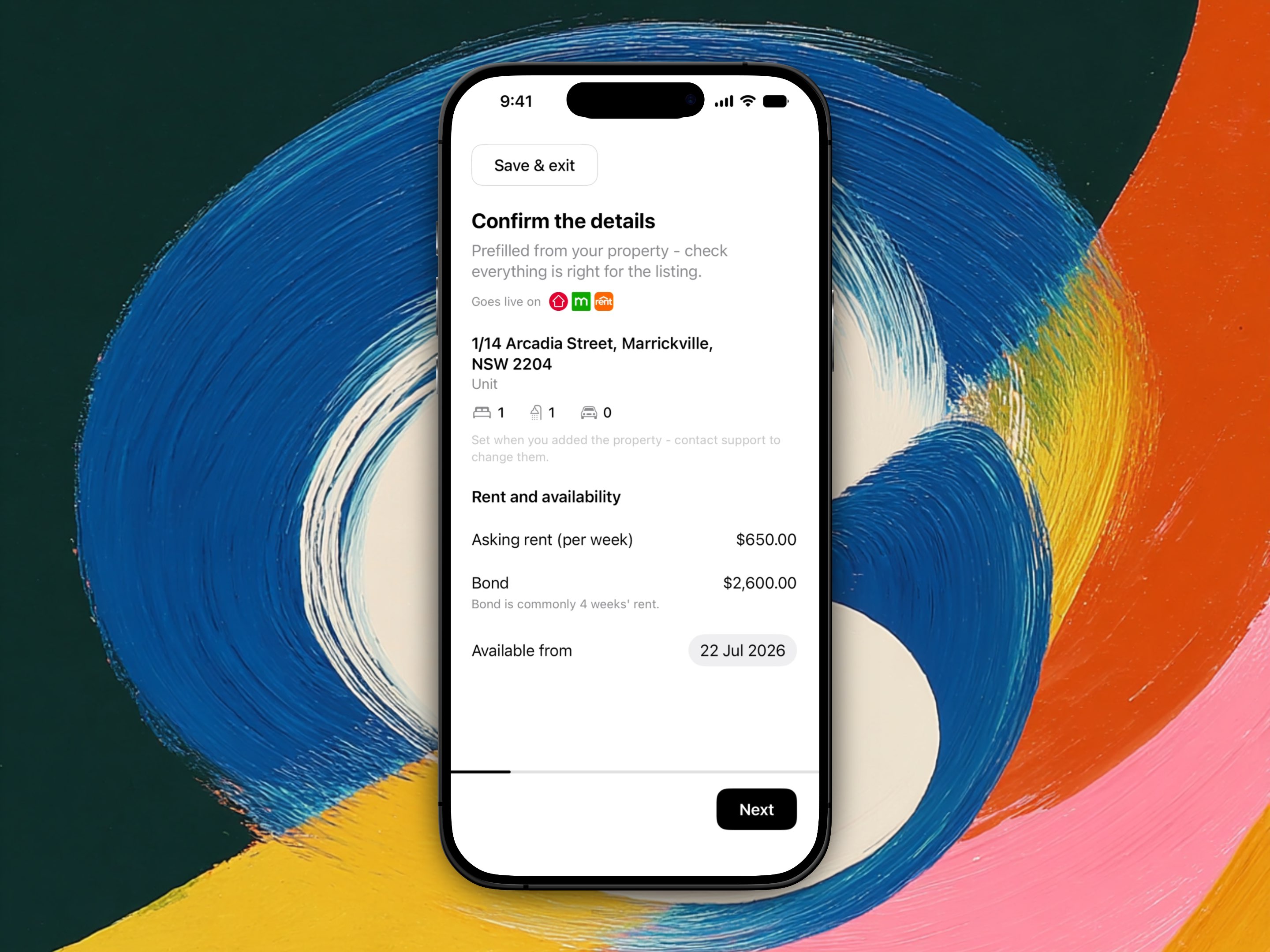
- Highlight the features. A grid of amenities like air conditioning, dishwasher, or internal laundry, prefilled from your property record. Optional, so you can always move on.
- Add photos (minimum 4, up to 20). A new listing starts with the property's Photo tour photos already loaded, in the same order, so you're not asked for them twice: add to them, reorder them, or remove any you don't want on the listing. Each photo gets its own tile with its file size (photos are capped at 1 MB each) and an upload progress ring. Next enables as soon as you've selected your photos; uploads keep running in the background while you move on. The first photo is your cover shot, badged Cover: drag to reorder, or press and hold a tile for Make cover photo and Remove. Listings with 8 or more photos tend to get more enquiries. If the property is still tenanted while you're listing it, you'll be asked to confirm you have your tenant's consent before uploading, since photos showing their belongings need it in most states.
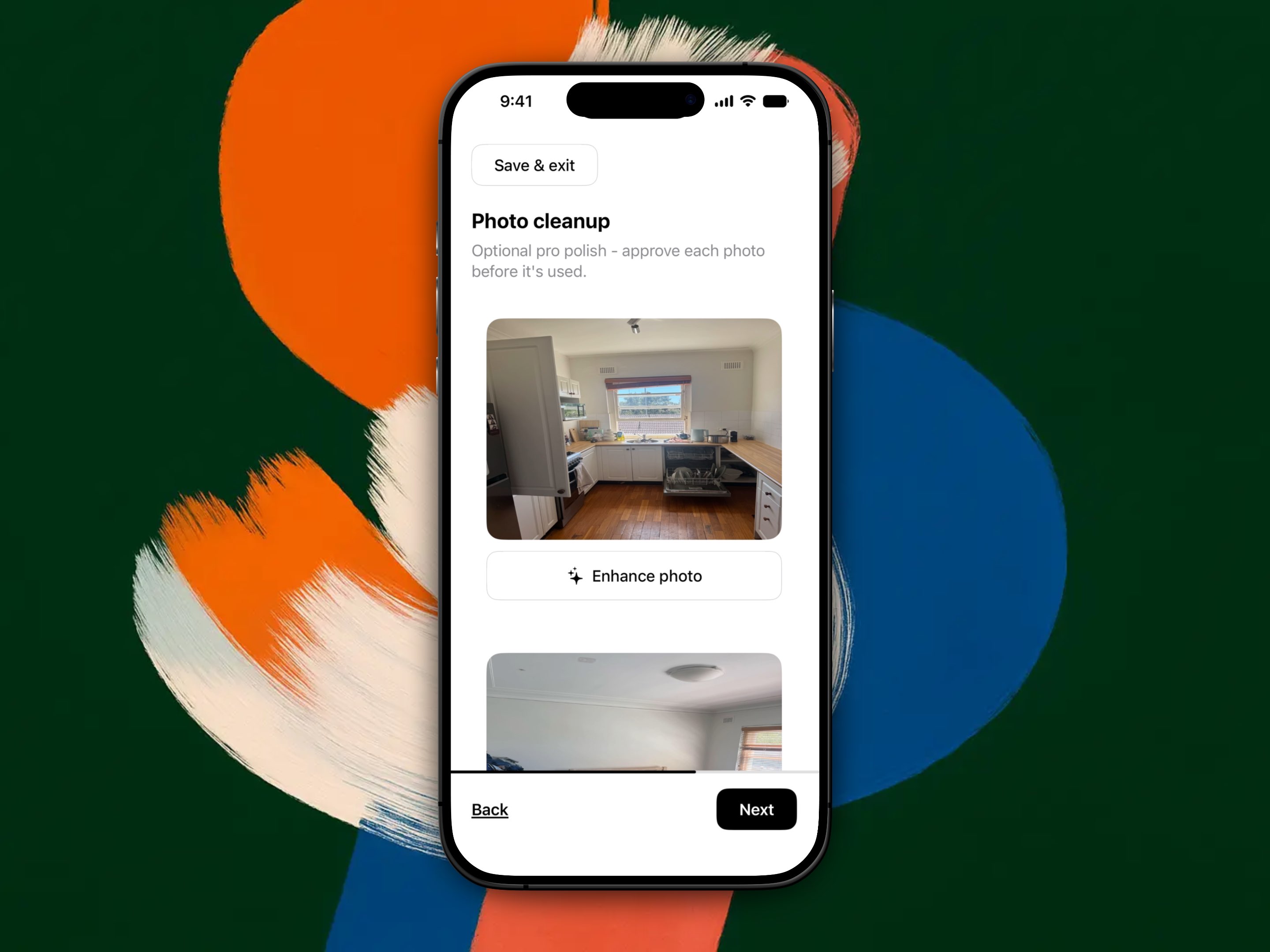
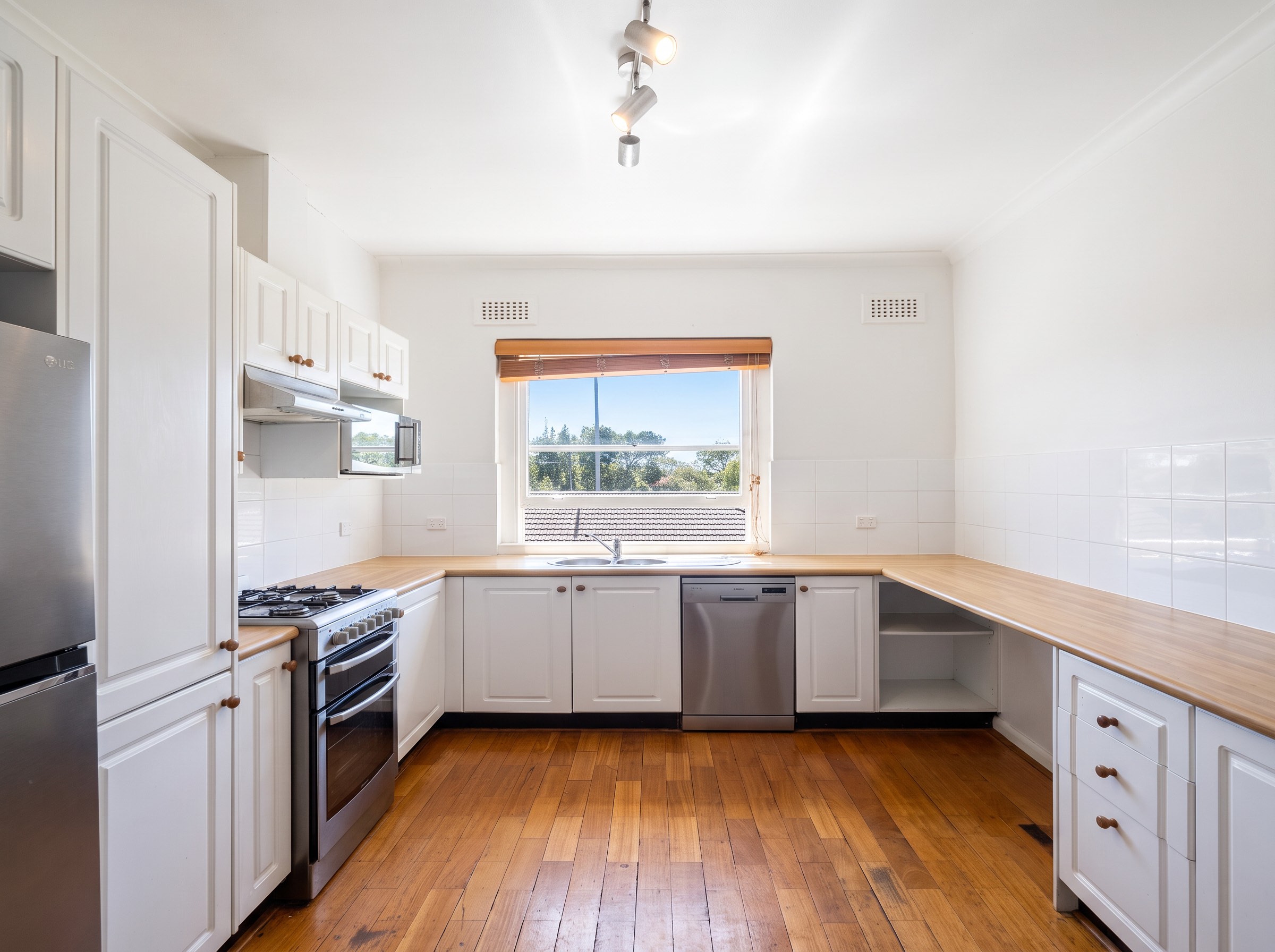
- Photo cleanup (optional AI polish). Enhance each photo individually, takes about 30 to 60 seconds. Tap Enhance photo on several and they run one at a time, the waiting ones reading "Starts when the photo ahead finishes". Compare the original and the AI-enhanced version with a before/after slider, then approve (or skip) each one on its own.
Your own phone photo is the starting point, even if the place is still tenanted and looking lived-in.
Tap Enhance photo and you get back a cleaned-up version of the same room: brighter, straightened, and tidied up.
- Write the listing. A headline (up to 80 characters) and a description (up to 5,000 characters). Tap Write it for me to have Propero's AI draft both from your details, features, and photos, then edit freely or tap Write it again to regenerate.
- Review and confirm. See how your listing will look, add the optional signboard, check the cost breakdown, and confirm. If any photos are still uploading, this step waits for them to finish before you can submit.
Photos come before the copy step, so the AI-written copy can reflect your final images.
After you submit
Once you submit, the property hub shows an order status card. See Managing your listing for every status, how to cancel or change an order, and what happens when enquiries start coming in.
Review and payment
After you submit, Propero reviews the listing and emails you a secure payment link. Payment is not taken inside the app.
Indicative pricing (including GST):
| Item | Indicative price |
|---|---|
| Portal listing | $199.95 |
| Optional "For Lease" signboard | $300 |
The portal listing price is all-in. The prices shown in the app are indicative. Your emailed payment link confirms the final amount.
Listings go live on realestate.com.au, Domain, and rent.com.au within about 24 hours after payment, through a for-lease-by-owner service. Enquiries and applications go directly to you, and they're yours to handle.
Related guides
Advertising
Advertise a vacant property on Australia's major rental portals for a one-off fee. Advertising unlocks on tenancy state, not your subscription.
Managing your listing
Track order status on the property hub, cancel before payment, handle enquiries, and contact support to update a live listing.