

Recording payments
Tap a heatmap cell on Payment Overview to log the date and amount received, and see how partial payments, overpayments, and colours work.
Record rent from Payment Overview (Home > property > Rent pulse card).
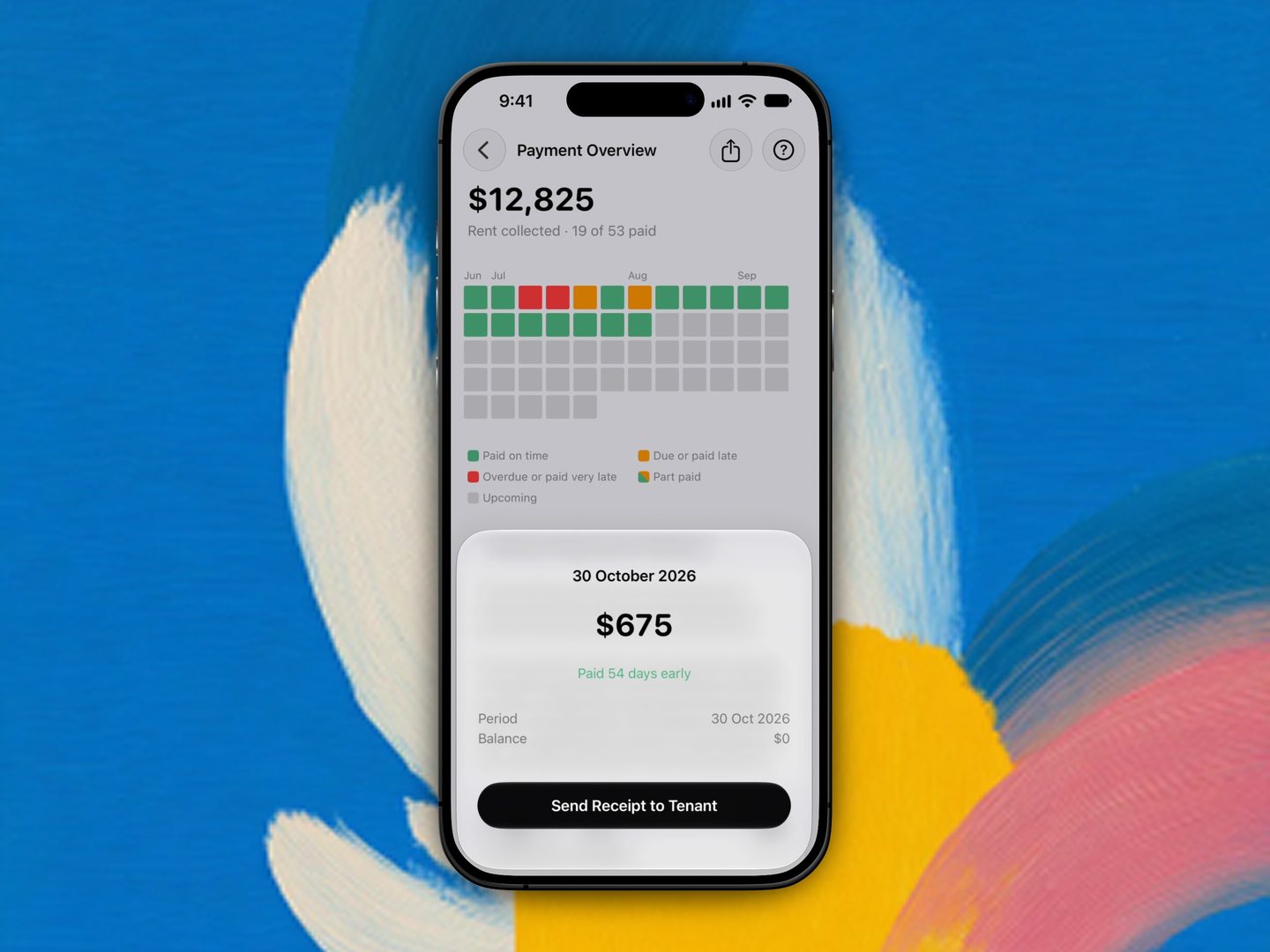
When rent tracking started after a paid-to date during setup, a Rent tracked from [date] note sits under the heatmap.
Record rent
There's no separate "record payment" button on this screen. Tap a payment-backed cell on the heatmap to open that period, then tap Record Payment.
The record form has two fields:
| Field | Default |
|---|---|
| Date Received | Today |
| Amount | What's still owed for that period |
Tap Confirm Payment to submit. The payment appears on the heatmap straight away with a Saving caption until the server confirms. If the save fails, Propero rolls the payment back and shows a message so you can try again.
Propero does not ask how the tenant paid, no payment method is stored anywhere in the app.
A period that's already Paid has no Record Payment button, you can only send a receipt for it (see below). A Cancelled period is superseded schedule history and can't be recorded against either.
Part payments
If a tenant pays less than the full amount, record what actually arrived. The period stays open and keeps the remainder as a Balance. Next time you open that period, the Amount field is already filled in with what's still owed, so recording the rest is two taps.
A part-paid period shows a green wedge in its heatmap cell, sized to the share that's been paid, so you can see at a glance how far through a period is. Once a period has taken more than one payment, its status line adds a count, for example "Late by 3 days · 2 payments".
Overpayments
If you enter more than the period owes, Propero pays that period in full and carries the rest forward, applying it to your next open periods, oldest first. Anything still left over is held as credit against the lease and applied to future rent as it falls due. You'll see a "$X recorded in advance" confirmation when that happens, and a "Payment applied across N periods" one when a single payment settles more than one period.
Recording the same payment twice
If you record the same amount against the same period twice within ten minutes, Propero stops and asks first:
Record this payment again? "You recorded $X against this period a minute ago. Record it again only if it was a separate payment."
Tap Cancel if it was a slip, or Record Again if the tenant genuinely paid twice. The check runs on Propero's servers, so it catches a double tap even if the app was interrupted mid-submit.
Payment heatmap
The heatmap shows one cell per payment period. Grid shape follows your rent frequency: weekly and fortnightly periods wrap into rows, monthly leases show a single row with one cell per month.
Colour legend
| Colour | Label |
|---|---|
| Green | Paid on time |
| Orange | Due or paid late |
| Red | Overdue or paid very late |
| Grey | Upcoming |
| Green wedge on a coloured cell | Part paid (the wedge is the share received) |
Paid cells are recoloured by how late they were:
- Paid on or before the due date: green
- Paid 1 to 5 days late: orange
- Paid more than 5 days late: red
Tap a payment-backed cell to view or record rent. Empty filler cells are not tappable.
Status text on a payment
Opening a period shows its exact status as text, not just a colour:
| Situation | Status text you'll see |
|---|---|
| Not yet due | Upcoming |
| Due today | Due today |
| Within the grace period | Late by 1 day |
| Past the grace period | Overdue by 4 days (days since due) |
| Paid on the due date | Paid on time |
| Paid after the due date | Paid 2 days late |
| Paid before the due date | Paid 2 days early |
| Superseded by a schedule change | Cancelled |
Why status might not update immediately
Payment status updates once each day at 9am Sydney time, not in real time. A period may stay "Due" until the next update even after you record payment, or may not show as "Late" until the following morning.
Send a receipt
Once a period is fully paid, its Record Payment button is replaced with Send Receipt to Tenant. See Statements & receipts.
Backdated tenancies
When you add a tenancy that already started, you tell Propero what date the tenant is paid up to. Rent tracking starts the day after, and that day becomes the rent day.
Late rent & reminders
Rent turns Late after a one-day grace period and Overdue after that. Reminders go to you only, daily while overdue, updating at 9am Sydney time.