

Setting up your address
How a property's @inbox.propero.app address is created, what it looks like, how to share it with your tenant, and where every address is listed in Account.
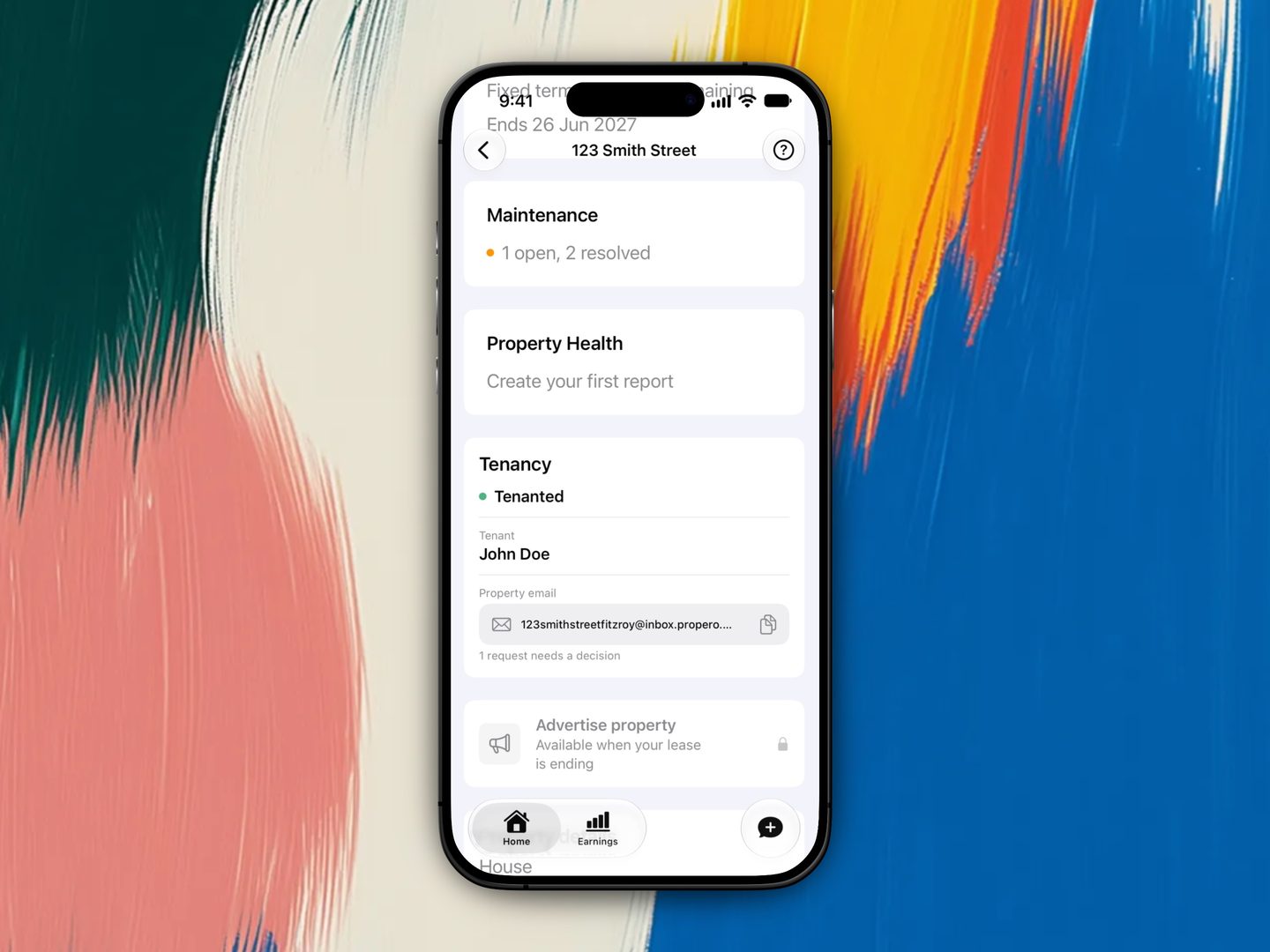
On Propero Pro, a property's address is usually created for you. Open the property hub and, if that property has no address yet, Propero quietly creates one in the background, with no prompt and no confirmation. By the time you look at the Tenancy card the real address is sitting in the pill. Once it exists it's permanent for that property.
Setting it up yourself
If you get there first, either of these does the same thing:
- Property hub > Tenancy card. At the bottom of the card sits a pill reading
youraddress@inbox.propero.appwith the caption "Tenants email it. Propero drafts your reply." Tap it. - Chat tab, on an empty chat. Under the greeting there's a chip reading Set up your property email. Tap it.
On a Free account both open the Pro paywall instead ("Give every property its own email"). Subscribe there and the address is created straight away.
When you set it up by tapping, Propero copies the address to your clipboard and shows Address ready. From then on the hub pill shows the real address under a Property email label, with the caption "Tap to copy. Hold to share." An address created in the background says nothing: the pill just holds the address next time you look.
What the address looks like
The address is built from the street part of the property's address, letters and digits only, all lowercase:
| Property address | Email address |
|---|---|
| 12 Smith St, Paddington NSW 2021 | 12smithst@inbox.propero.app |
| Unit 1, 31 South Ave, Paddington NSW 2021 | unit131southave@inbox.propero.app |
If another Propero landlord already has the same street name, yours gets a number on the end (12smithst2). You can't choose a custom name, and the address can't be renamed or deleted once it's made.
Sharing it with your tenant
- Tap the pill (on the hub or the Chat chip) to copy the address.
- Press and hold for Copy email or Share, which opens the iOS share sheet so you can text or email it to your tenant.
Only mail from your tenant's stored email address, or from your own sign-in address, gets through. Anything else is dropped without a bounce. So make sure the address you give the tenant is the one on their record: open Lease Overview, tap the tenant, and check Email. See Editing tenant contact details.
Keep it to people you trust
The address is unique to your property. Propero only accepts mail from your recorded tenants and from you, but it's still worth treating the address like a private line rather than putting it on a listing.
Email settings in Account
Open Account (your initials on Home) and tap Email settings. The screen has three cards:
- A heading, Your property's email address (or Your property email addresses if you have more than one property), with an Accept forwarded emails switch and three lines explaining what the address does. The switch controls forwarding your own emails, not tenant mail.
- One pill per property that has an address, each with a copy glyph. Tap to copy. If you haven't set any up yet it reads "Set the address up from your property screen." This screen lists addresses, it doesn't create them.
- A security line naming the email you signed in with: only emails forwarded from that address are recognised.
Related guides
Propero Mail
Every property can have its own email address. Tenants write to it and Propero drafts your reply in Chat. Forward your own emails to it and Propero answers in Chat and by email, so you can ask about a property from any inbox.
Tenant emails in Chat
When a tenant emails your property address, Propero reads it, drafts a reply, and hands you the decision in Chat. Repairs are logged as a maintenance request on arrival, and the reply card is where you edit, send, or close.