

Tenant emails in Chat
When a tenant emails your property address, Propero reads it, drafts a reply, and hands you the decision in Chat. Repairs are logged as a maintenance request on arrival, and the reply card is where you edit, send, or close.
When your tenant writes to the property's address, the email doesn't land in a separate inbox. It lands in the Chat tab, for that property, as a conversation you finish in a couple of taps.
How you find out
On Pro, a verified tenant email does three things at once:
- A push notification: "Tenant request needs a decision" (or "Urgent tenant request" if Propero reads it as an emergency), with a one-line summary. Tap it to open the chat.
- The property's attention card on the hub gets one row: "1 tenant email waiting on you" (or however many). One row, however many emails are waiting. Tap it to open the chat for that property. The property email pill's caption changes to "N requests need a decision" too, and the property's card on Home shows Action needed.
- Opening the Chat tab shows the waiting emails at the top of the screen instead of the usual greeting.
Free accounts see the email in Chat but don't get the push.
What you see
Each email is shown as a turn in the chat:
- The tenant's name and the address they wrote from, and how long ago
- The property, if you have more than one
- Propero's read: one line on what the email is about
- The tenant's letter, folded to four lines with Show more
- Any attachments as chips. Tap one to open it. Propero keeps up to 10 attachments per email, up to 10 MB each (photos, PDFs, Word, Excel, text and CSV files). Anything larger or of another type is left out quietly.
Under the letter, marked Only visible to you, sits the reply as a single compact card: the email's subject, or Reply to [tenant] when it doesn't have one, with the recipient underneath. Propero writes the draft behind it from the email, the lease, the rent position, and any open maintenance for that property, and checks the relevant state's tenancy law along the way. It won't propose rent changes, record payments, or draft notices; those stay yours.
Reply, close, or log a job
Tap the card to open the reply itself. The sheet is titled Draft reply, and it's the letter as your tenant will get it:
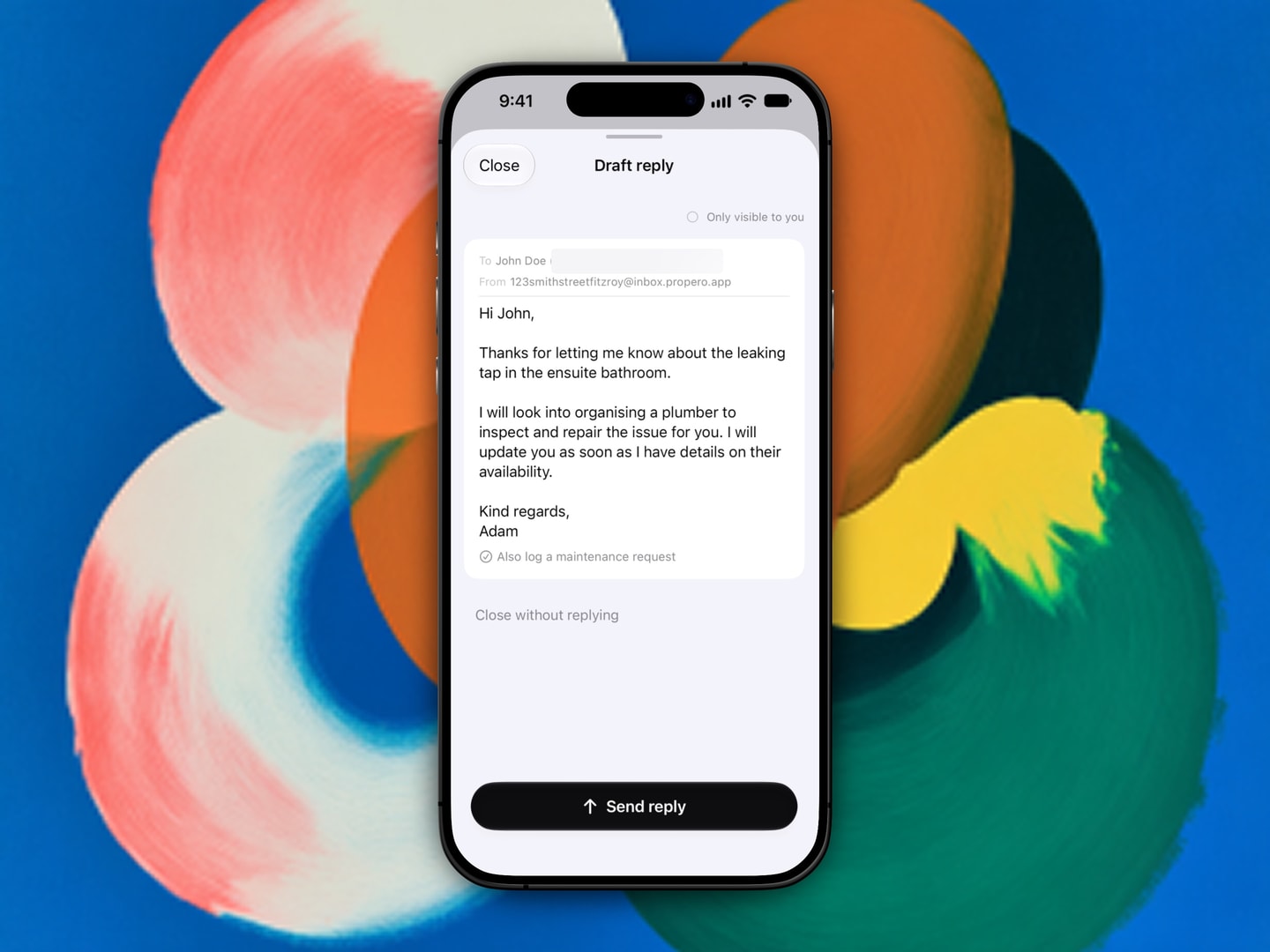
| Part | What it does |
|---|---|
| To and From | Who it goes to, and the property address it leaves from |
| Subject | Shown when the email carries one |
| The body | Editable in place. Type straight into it |
| Also log a maintenance request | A tick, on by default, when Propero reads the email as a repair. The request already exists. Turning the tick off removes it |
| Send reply | The button in the bottom bar, and the only control that sends |
| Close without replying | Closes the email without sending anything |
| Close (top left) | Dismisses the sheet and leaves the draft as it is |
Nothing goes to the tenant until you tap Send reply. Propero drafts, you send.
When Propero reads the email as a repair it creates the maintenance request as soon as the email arrives, on the property's Maintenance screen, with the category and urgency it picked. The request is already there before you open the sheet, and it doesn't wait on your reply.
Also log a maintenance request is your control over that request, ticked to begin with. Leave it ticked and the request stays. Untick it and Propero removes it, so you can reply about the repair without keeping a job on the board, or close the email without replying and still leave the request in place.
While a send is in flight the body, the tick, and the other decisions are locked, so a late edit can't go out after the reply has left.
You can also ask Propero about the email in the same chat: "make it firmer", "say the plumber's coming Thursday", "shorten it". Propero rewrites the draft and the card moves under its reply, with "Draft updated below" left where it was. It can rewrite, but it can never send.
After you send
The card stays where it is and gains a delivery line beneath it:
| Line | Meaning |
|---|---|
| Sending | On its way. The card checks back for about half a minute |
| Sent to tenant@example.com | Delivered to their mail provider |
| Not delivered | Their provider bounced it |
| Sending paused | The tenant reported a reply as spam |
Tapping the card now opens the same sheet read-only, titled Your reply, with the delivery line inside the letter and the recovery controls under it:
- Not delivered reads "Check the tenant's email, then try again." with Fix email and Retry. Fix email opens the tenant's details so you can correct the address, see Editing tenant contact details. Retry re-sends to whatever address is on the tenant's record now, and counts as one reply.
- Sending paused reads "The tenant reported a reply as spam. Resume to send again." with Resume sending. The old reply isn't re-sent.
An email you closed without replying collapses to a single line, Closed without replying, where the card was. Replies from earlier in the conversation stay as the same compact card, captioned Sent, Closed, or Earlier reply, and open read-only.
A bounce or a spam report after you've left the chat arrives as a push: "Reply not delivered", naming the tenant only.
Limits
- Replies: 200 a day and 10 a minute, across all your properties. Past the daily limit the sheet reads "You've sent today's replies. They reset at midnight." and Send reply is off until then.
- Reading emails: each tenant email Propero reads, and each draft it rewrites, counts as one message against your daily Chat allowance. See Using Propero Chat.
On a Free account
The email and its card still show, but the sheet's decisions are replaced by "Replies are a Pro feature" and a See Pro button, with no send. Propero doesn't read the email on Free: the summary is the first line of the letter and the draft is empty. Upgrade and the next email gets the full treatment.
Sender checks
Propero only accepts mail from the tenant's stored address, including plus-tagged versions of it (sarah+home@example.com counts as sarah@example.com). If the email fails the usual sender checks (SPF, DKIM, DMARC) it still lands, but with the caption "Sender not verified. Replies are blocked until you check it." and only Close without replying available. "Sent from a different address. It still looks like them." is the softer case, where a verified sender used a different mailbox.
Out-of-office and other automatic replies are stored quietly and never trigger a draft or a notification.
No separate inbox screen
Emails you've handled stay in the chat they arrived in, and those conversations are saved to your account. Tap the history button at the top left of Chat to reopen one, grouped under Today, Yesterday, Past week, or Earlier. See Conversations. What there isn't is a dedicated inbox screen listing tenant emails on their own, apart from the chats they belong to.
Related guides
Setting up your address
How a property's @inbox.propero.app address is created, what it looks like, how to share it with your tenant, and where every address is listed in Account.
Forwarding your own emails
Forward an email from your sign-in address to a property's address and Propero answers it, in Chat and by email back to you. Covers the Accept forwarded emails switch and Hide My Email accounts.